How To Add A Domain Name In Webmin Tutorials Guide Steps
this tutorial will help you step by step with images and pictures of how to add a domain to your webmin contronl panel so you can host your own website using webmin on a linux server this guide is very helpful when you dont understand much about [319], Last Updated: Tue May 20, 2025
wallpaperama
Wed Jul 11, 2007
24 Comments
22236 Visits
how to add a domain name in webmin, if you want to know how you install webmin click here
if you are like me, i have a linux server with webmin installed. and i want to host a domain name with webmin so to add it in my server so i can host the files. this way i dont have to pay expensive fees to a web hosting company to host all my domain names because i have so many. so i will show you step by step what i did to add. this is what i did
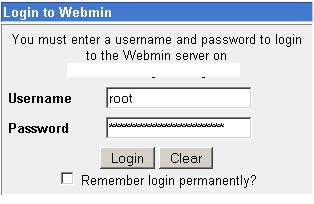
1. login to your webmin panel:
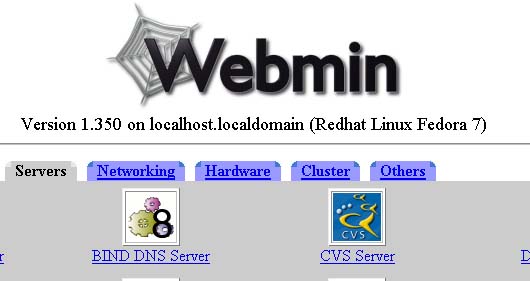
2. go to Servers > BIND DNS Server
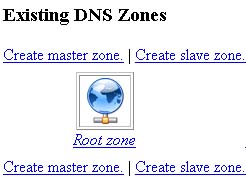
3. In the BIND DNS Server, click on "Create Master Zone" link under "Exisiting DNS Zones"
4. populate the following fields:
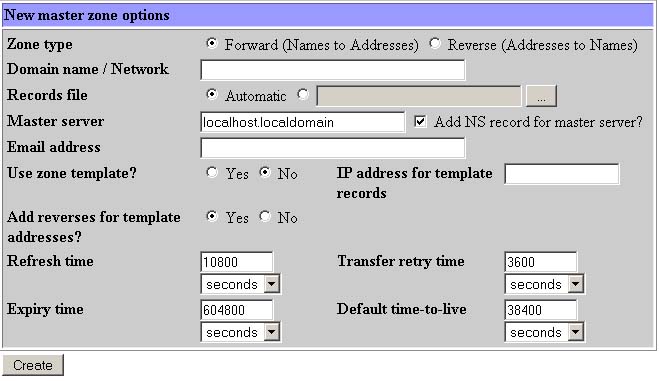
» Domain name / Network (this is the domain name you want to host)
» Email address (this is the webmaster's email address)
» IP address for template records (enter your server's ip address)
5. now click on the "Create" button
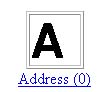
6. Then you will be taken to the "Edit Master Zone" page. on this page you will need to click on the "Address" icon
7. in the Address Records page, populate the following in the "add address record" table:
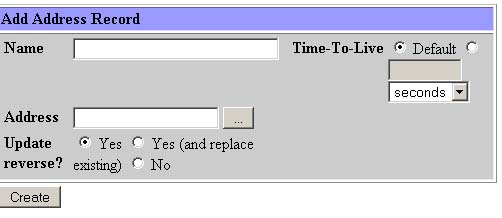
» Name (Enter www)
» Address (Enter your server's IP)
» CLICK "Create"
after you created the address record, click on "Return to record types" link at the bottom
8. now that we have added you domain name to your DNS server, its time to create a virtual host in your apache server so in the Servers category, click on "Apache Webserver" link

9. click "Create virtual host"

10 . Populate the following fields in the "Create a New Virtual Server" form:
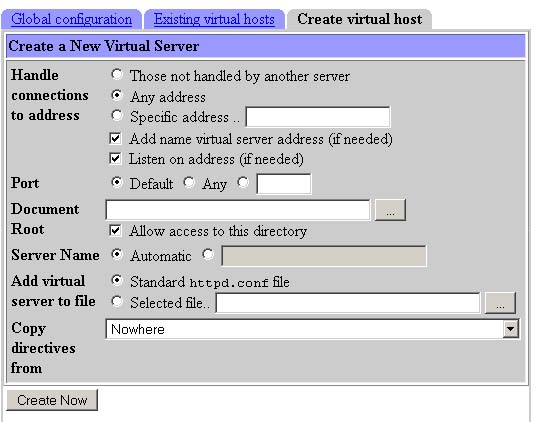
Handle connections to address: (select: Specifi Address... [enter the server's ip address])
» Port: (here you can select Default, Any or specify one. what i did, i specified port 80, so i entered 80)
» Document Root: (here i specified which directory i was going to have this domain's files for this site. so i entered /var/www/html/mydomain but you can enter whatever directory you want to put your web files, its your choice)
» Server Name (i entered my domain name like this: www.mydomain.com:80 [i included the :80 part also])
» Add virtual server to file (leave default as Standard httpd.conf file)
» Copy directives from (leave default: Nowhere)
11. after you have created the virtual host, you need to save the changes. there is a link "Apply Changes" click on it.
12. now if you domain name is pointing to your server, you should be able to see the your domain name. just make sure you have an index file like index.html or index.php file in the directory you specified in step 10.
Thanks to the suppor poeple at www.webune.com for helping me figure this out. now i am able to add as many domain names to my dedicated server i got from Webune.
if you are like me, i have a linux server with webmin installed. and i want to host a domain name with webmin so to add it in my server so i can host the files. this way i dont have to pay expensive fees to a web hosting company to host all my domain names because i have so many. so i will show you step by step what i did to add. this is what i did
1. login to your webmin panel:
2. go to Servers > BIND DNS Server
3. In the BIND DNS Server, click on "Create Master Zone" link under "Exisiting DNS Zones"
4. populate the following fields:
» Domain name / Network (this is the domain name you want to host)
» Email address (this is the webmaster's email address)
» IP address for template records (enter your server's ip address)
5. now click on the "Create" button
6. Then you will be taken to the "Edit Master Zone" page. on this page you will need to click on the "Address" icon
7. in the Address Records page, populate the following in the "add address record" table:
» Name (Enter www)
» Address (Enter your server's IP)
» CLICK "Create"
after you created the address record, click on "Return to record types" link at the bottom
8. now that we have added you domain name to your DNS server, its time to create a virtual host in your apache server so in the Servers category, click on "Apache Webserver" link
9. click "Create virtual host"
10 . Populate the following fields in the "Create a New Virtual Server" form:
Handle connections to address: (select: Specifi Address... [enter the server's ip address])
» Port: (here you can select Default, Any or specify one. what i did, i specified port 80, so i entered 80)
» Document Root: (here i specified which directory i was going to have this domain's files for this site. so i entered /var/www/html/mydomain but you can enter whatever directory you want to put your web files, its your choice)
» Server Name (i entered my domain name like this: www.mydomain.com:80 [i included the :80 part also])
» Add virtual server to file (leave default as Standard httpd.conf file)
» Copy directives from (leave default: Nowhere)
11. after you have created the virtual host, you need to save the changes. there is a link "Apply Changes" click on it.
12. now if you domain name is pointing to your server, you should be able to see the your domain name. just make sure you have an index file like index.html or index.php file in the directory you specified in step 10.
Thanks to the suppor poeple at www.webune.com for helping me figure this out. now i am able to add as many domain names to my dedicated server i got from Webune.
ASKWHYWEB
Fri Dec 09, 2011
I am really thankful to this site where my host was charging for this kind of little activity. Rest of the things goes smooth. Only thing is creating issue is the directory. The files are not being populated from the directory where I want to. Anyhow I will love to look further if any one can help.
Thanks
Farhan
jeff
Thu May 26, 2011
i cant go through, is the domain name server the same as my companies website name? i tride with it but displays my home page
Slim
Tue Apr 12, 2011
Thanks a lot!!!! This tutorial was just AMAZING!!!!
THANKS AGAIN!!!!!
Selosindis
Wed Nov 24, 2010
Thank you for this tutorial! I couldn't find this information anywhere. You rock!
https://www.wallpaperama.com/forums/how-to-add-a-domain-name-in-webmin-tutorials-guide-steps-t1706.html
https://www.wallpaperama.com/forums/how-to-add-a-domain-name-in-webmin-tutorials-guide-steps-t1706.html
Mau
Fri Mar 26, 2010
All I can say is: THANK YOU!
Although I have an earlier version of webmin the procedure was very similar.