Howto Fix: Cannot Delete Rename Move : It is being used by another person or program.
Howto Fix: Cannot Delete Rename Move : It is being used by another person or program. This page contains information about Howto Fix: Cannot Delete Rename Move : It is being used by another person or program. Here you can also give your thought about the
The other day I was cleaning up my computer. When I came acrros a file I didnt use anymore and I wanted to deleted it. Everytime I tried to delete it kept giving the the following error:
Cannot Delete example.jpg: It is being used by another person or program.
cloase any programs that might be using the file and try again.
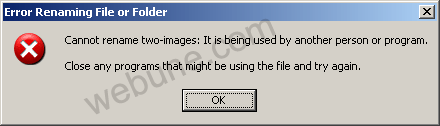
I tried everything to delete. I even tried moving it to the recycle bin. I even tried seeing what program was using this file in the task manager (hit control-alt-delete and select task manager) but no hope. What was wors, it was making my explorer.exe crash, so that mean i could see my files. UH!
I was about to give up till I tried my last hope. The Safe Mode. I logged in as administrator in safe mode. deleted the file, rebooted computer and boom!, the stupid file was gone.
just in case you dont know how to get into safe mode follow these steps
- restart computer
- When computer is restarting, the BIOS will start to load, after the BIOS has loaded it will start to load the Operating System. In this case Windows. So right after the BIOS has completed, keep pressing F8 key. you will get a text menu.
- Hit your arrow keys to select "Safe Mode" and press Enter on your keyboard
- Windows will start to load. You will see "Safe Mode" on all the 4 corners of your screen.
- Once at the login box, login as administrator
- Go to the folder and file that you want to delete and delete it.
- Now go to your Recycle Bin, and delete the file again.
- Now, reboot your computer normally
- After you login back normally, the annoying file should be gone.
Hope this Helps
Courtesy of www.webune.com